You can create, build, test, validate, and pack apps using the meta framework. The meta framework includes a structured, framework-first approach aligned with modern front-end development practices. Along with front-end components, you can also use React to build custom installation page for the app.
Note:Currently, the meta framework is primarily built around the React framework.
Before creating an app with the meta framework, ensure you have installed the prerequisites and FDK + CLI. For more information, see Install prerequisites and Install the FDK + CLI.
To create an app with the meta framework, use the fdk create command and select the react-starter-template option.
A new app with the following directories/files is created based on the template.
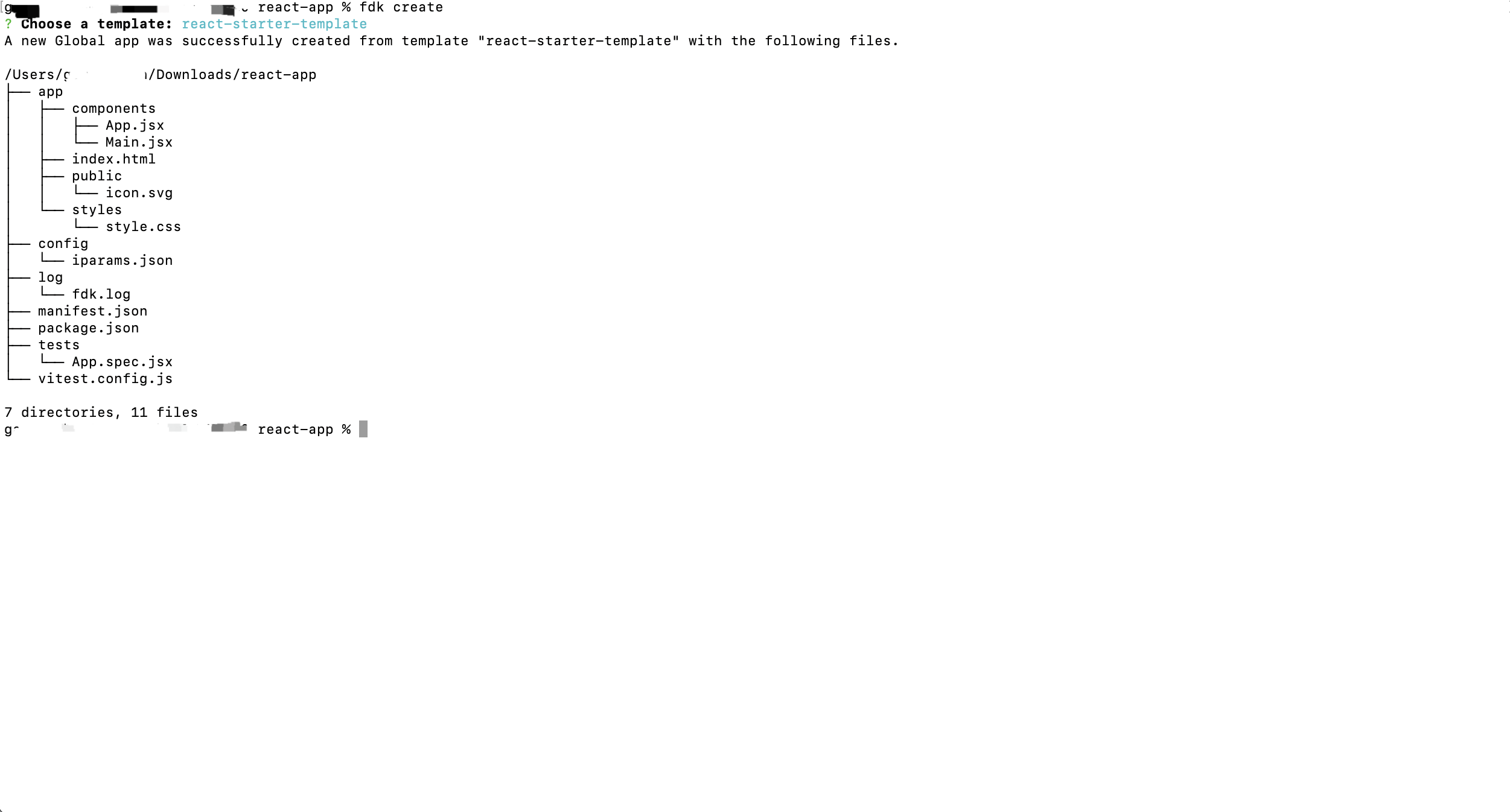 Directories and files that the create command generates for react-starter-template
| Directory/File | Description |
|---|---|
| Important:When building an app, do not modify the default folder/file names. | |
| app/ | Contains all the files required for a front-end app or its front-end component. |
app/components | Contains all the front-end React components. You need not make the file path complex and can refer to it as ‘app/component/name’ instead of a dynamic path like../.. |
| app/public | Contains all the images to be used for the app. |
| app/styles | Contains the styles required for the front-end components of an app. |
| config/ | Contains the installation parameters and OAuth configuration files. |
| config/iparams.json | Specifies all the installation parameters whose values are set when the app is installed. For more information, see App settings. |
| config/iparams.html | Specifies all the custom installation parameters whose values are set when the app is installed. For more information, see App settings. |
config/assets | Contains iparams.js file, components, and styles. Note:Using an iparams.js file is not mandatory while building an app with the React meta framework. |
config/assets/components | Contains all the React components required for the installation page. You need not make the file path complex and instead refer to it as ‘config/assets/component/name’ instead of a dynamic path like../.. |
| config/assets/styles | Contains the styles required for the installation page of an app. |
| test/ | Contains the unit test files used to validate the app code. |
index.html | Contains files that render the front-end components of an app. This is the first page that is loaded when the app is activated. When building an app, if the app uses the Data method, Request method, Installation settings, or Data store, update the index.html file with the following client JS resource: Note:You can create the HTML file with the name of your preference, at the root level of the app directory, and then configure it in the manifest.json file. |
manifest.json | Contains details such as the platform version the app uses, module on which the app is deployed, placeholders for the front-end app rendering, request templates that the app code uses, FDK version used to build, test, validate, and pack the app, and framework used to build the app. Note:The apps built with meta framework includes the metaConfig object with the framework attribute. With this object, you can also define packageManager to specify the package manager to be used. If the packageManager field is not specified in manifest.json, the meta framework defaults to using npm to install dependencies. |
Once the app is created, build the app by implementing your app logic within the app directories as required. Consider the following while building an app using the meta framework.
Setting configuration and validation methods globally
While building an app using the meta framework, ensure that the configuration methods defined are globally available. The configuration methods can be defined in iparams.js or in any other file inside a React component under config/assets/components. To allow the meta framework to access the configuration methods (getConfigs, postConfigs, validate), explicitly attach them to the window object, regardless of where they are defined.
React routing
When using React Router, the base path may not always match. To ensure the app built with the meta framework is rendered without any issues, define a fallback route and import it in the main file.
<Route path="*" element={ <Home /> } />
<Route path='/app/tailwind' element={ <TailwindPage /> } />
<Route path='/app/form' element={ <Form /> } />
After building the app, continue with the app testing, packing, validation and submission. For more information, see Test the app and the following sections.