Workspace or client level installation of global apps allows you to install multiple instances of the same app within an account.
For Freshservice and Freshservice for Business Teams, you can use an individual instance of an app to manage app services for different workspaces and maintain an individual data set for each of them.
For Freshservice for MSPs, you can use an individual instance of the app to manage service delivery for your client A while using a different instance of the same app for client B, as each workspace represents a client.
How does workspace or client-level installation work?
Apps are installed at the account level by default. You can add workspace scope to your app manifest to make your app available for workspace or client level installation.
Consider the following scenarios:
- In a Freshservice and Freshservice for Business Teams account, you installed a ticket management app for a workspace. You can specify details that are specific to that workspace in that app, and any new installations for other workspaces are not affected by any updates done in the former installation.
- In a Freshservice for MSP account, you installed a ticket management app for the client (workspace) created for your client A. You can import details that are specific to that client into the app. If the same app is installed for another client (workspace), say client B, the app is a new instance and is not affected by any updates made to the installation for client A.
Note:When an app is installed at the workspace or client level, it cannot be rendered in certain locations. For more information on the placeholder availability, see placeholders.
App installation process
On the app page, the Installation Scope indicates whether the app is available for Account-wide installation or Per-Clients installation, or both.
Follow the steps to install the app either at account level or client level.
Navigate to the app and click Install.
A prompt to select the installation level is displayed as shown below:
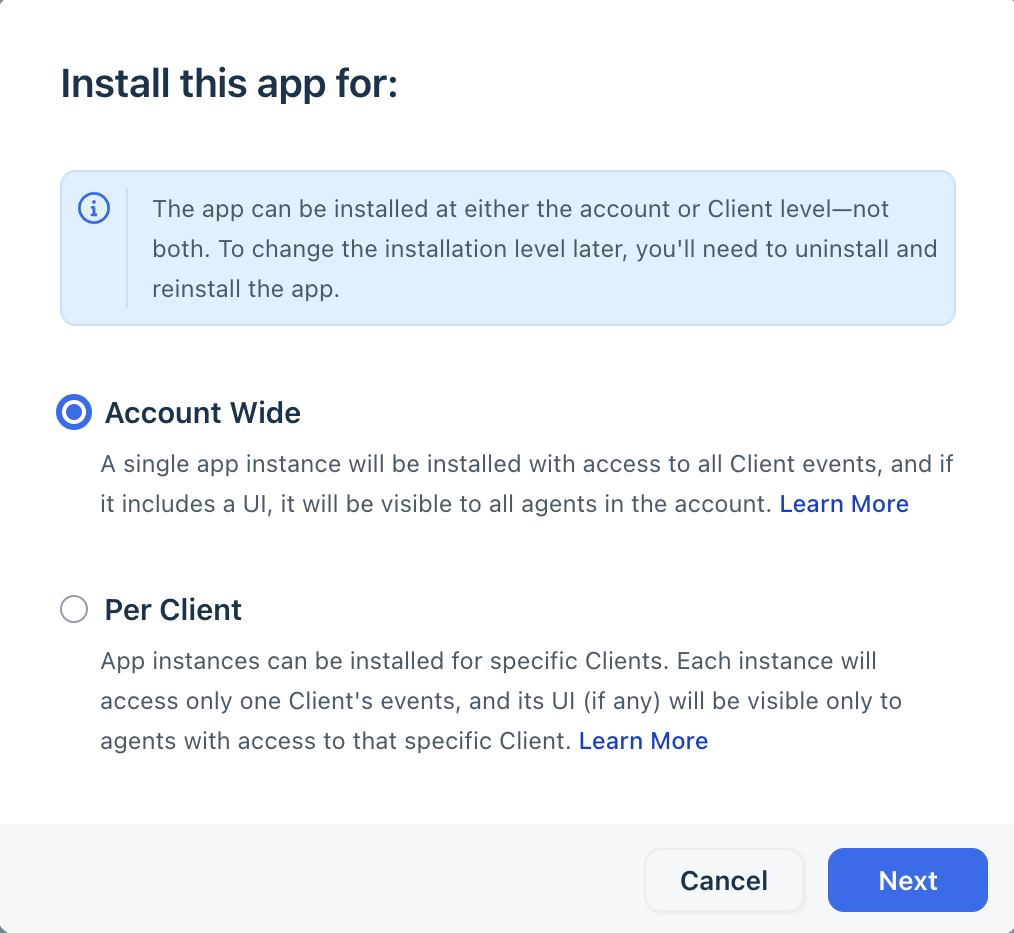 Account wide or Per Client installationNote:
You can install the app at either the Account level or the Client level. To change the installation level, uninstall the existing app and then reinstall it by selecting a different installation scope.
For example, to install the app at the Account level after installing it at the Client level, uninstall all existing app instances, and then reinstall the app with the Account installation scope.
To install the app on on Account level, choose Account Wide and click Next
To install the app on a Client level,
- Choose Per Client and click Next. All the clients(workspaces) to which you have access are listed.
- Select the clients(workspaces) for which you want the app to be available for.
- Click Install for the client(workspace) for which you want to install the app.
If the app has configuration, provide the required parameters in the configuration page and complete the app installation for the individual client(workspace) or account wide.
Under the Manage apps section, you can view the list of installed apps. To view for which clients(workspaces) the app is installed, click on the Edit Settings of a specific app.