Use the meta framework to create, build, test, validate, and pack apps. The meta framework includes a structured, framework-first approach aligned with modern front-end development practices. Along with front-end components, you can also use React to build custom installation page for the app.
Note:Currently, the meta framework is primarily built around the React framework.
Install prerequisites
Before creating an app with the meta framework, ensure you have installed the prerequisites and FDK + CLI. For more information, see:
Create the app
To create an app with the meta framework, run the fdk create command and select the react-starter-template option.
- Run fdk create.
- Select the react-starter-template option.
Understand the template structure
A new app with the following directories/files is created based on the template.
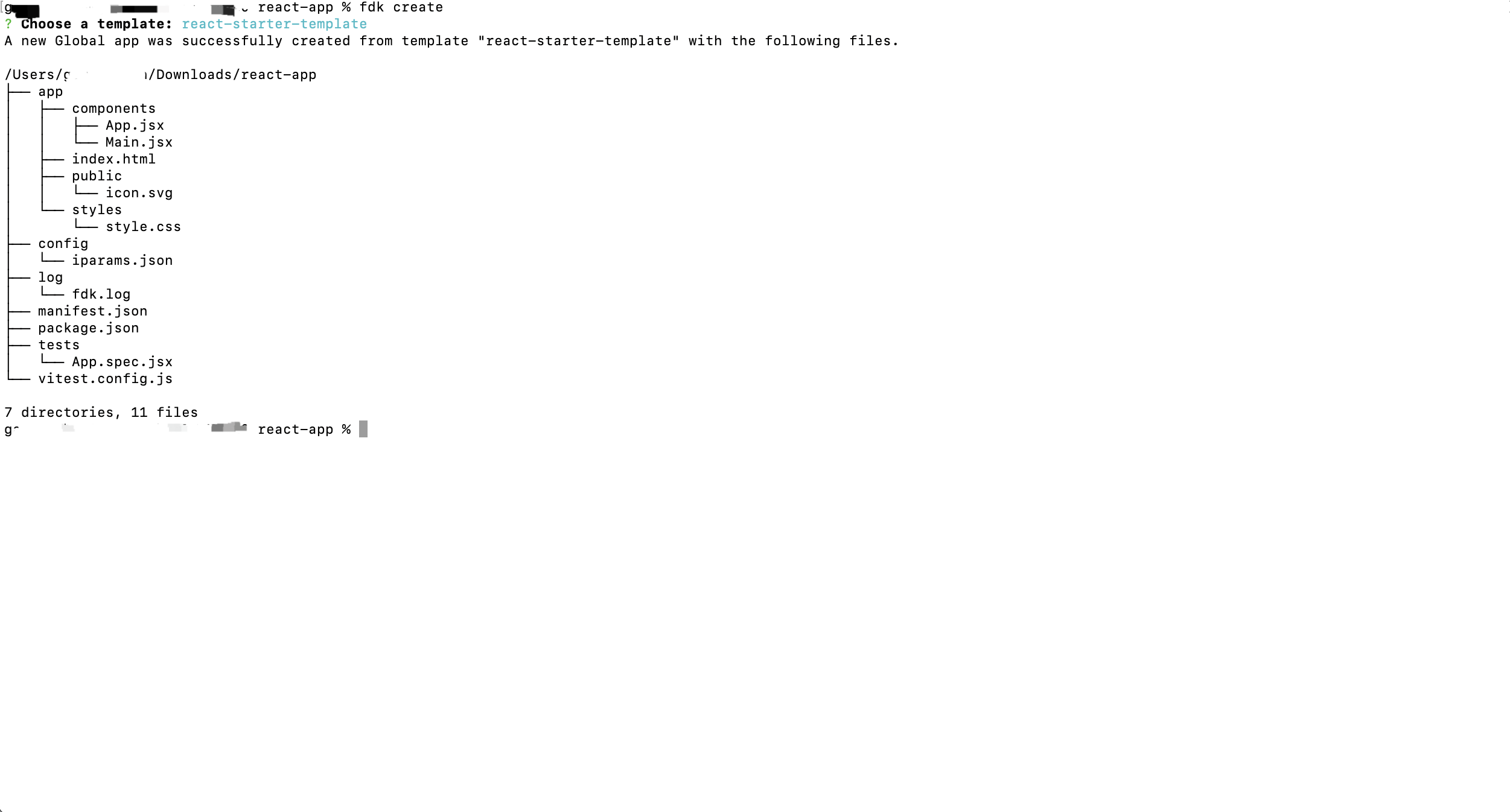 Directories and files that the create command generates for react-starter-template
| Directory/File | Description |
|---|---|
| Important:When building an app, do not rename the default directories or configuration files listed in this table. The root HTML entry file (index.html) is an exception: you may use a different filename if you update the corresponding url in manifest.json. | |
| app/ | Contains all the files required for a front-end app or its front-end component. |
app/components | Contains all the front-end React components. You need not make the file path complex and can refer to it as ‘app/component/name’ instead of a dynamic path like../.. |
| app/public | Contains all the images to be used for the app. |
| app/styles | Contains the styles required for the front-end components of an app. |
| config/ | Contains the installation parameters and OAuth configuration files. |
| config/iparams.json | Specifies all the installation parameters whose values are set when the app is installed. For more information, see App settings. |
| config/iparams.html | Specifies all the custom installation parameters whose values are set when the app is installed. For more information, see App settings. |
config/assets | Contains iparams.js file, components, and styles. Note:Using an iparams.js file is not mandatory while building an app with the React meta framework. |
config/assets/components | Contains all the React components required for the installation page. You need not make the file path complex and instead refer to it as ‘config/assets/component/name’ instead of a dynamic path like../.. For more information, see Set configuration and validation methods globally. |
| config/assets/styles | Contains the styles required for the installation page of an app. |
| test/ | Contains the unit test files used to validate the app code. |
index.html | Contains files that render the front-end components of an app. This is the first page that is loaded when the app is activated. When building an app, if the app uses the Data method, Request method, Installation settings, or Data store, update the index.html file with the following client JS resource: Note:If you use a different filename, place the HTML file at the root level of the app directory and set the matching path in manifest.json. |
manifest.json | Contains details such as the platform version the app uses, module on which the app is deployed, placeholders for the front-end app rendering, request templates that the app code uses, FDK version used to build, test, validate, and pack the app, and framework used to build the app. Note:The apps built with meta framework includes the metaConfig object with the framework attribute. With this object, you can also define packageManager to specify the package manager to be used. If the packageManager field is not specified in manifest.json, the meta framework defaults to using npm to install dependencies. |
For a demonstration of React + FDK capabilities with react-starter-template, take a look at the Superstack sample app.
Build your app
Once the app is created, build the app by implementing your app logic within the app directories as required. Not every section below applies to every app. Open the topics that match what you are building.
When you are ready to run the app locally, see Test the app.
Consider the following while building an app using the meta framework:
Add DEW theme support
React meta apps should use the DEW theme so your app matches the product UI and follows the light or dark theme automatically.
To add DEW theme support, install the DEW packages and import the DEW CSS.
Install the packages from your app root:
npm install @freshworks/dew-styles @freshworks/dew-componentsImport the DEW CSS in your entry file:
import '@freshworks/dew-styles/dist/dew-assets.css';
Note:Once the DEW CSS is added, your app automatically follows the product's light or dark theme. You do not need additional theme-handling code for the basic use case.
For reference, see the DEW component library documentation and the DEW Theme documentation.
Set configuration and validation methods globally
While building an app using the meta framework, ensure that the configuration methods defined are globally available. The configuration methods can be defined in iparams.js or in any other file inside a React component under config/assets/components. To allow the meta framework to access the configuration methods (getConfigs, postConfigs, validate), explicitly attach them to the window object, regardless of where they are defined.
Configure React routing
When using React Router, the base path may not always match. To ensure the app built with the meta framework is rendered without any issues, define a fallback route and import it in the main file.
<Route path="*" element={ <Home /> } />
<Route path='/app/tailwind' element={ <TailwindPage /> } />
<Route path='/app/form' element={ <Form /> } />
Test, validate, and submit the app
After building the app, continue with: